
APP OVERVIEW
1) Why use Photos Takeout when Apple’s Photos app already has an export function?
Photos Takeout offers more power, flexibility, and speed than the Photos app's Export function:
-
Photos Takeout preserves organization: Downloads photos from iCloud or Mac into neatly organized folders. Photos exports one big folder.
-
Photos Takeout preserves formats: Keeps JPEG, TIFF, RAW, HEIC, etc. intact. Photos forces you to choose one (JPG, TIFF, or PNG).
-
Photos Takeout handles HEICs better: If you export both edited and unedited HEIC files at a time, Photos Takeout keeps them distinct; Photos converts them all to JPG.
-
Incremental exports: Photos Takeout updates your archive without re-exporting everything. Photos has no such option.
-
No iCloud limits: With “Optimize Mac Storage” on, iCloud limits Photos downloads to 1,000 at a time; Photos Takeout can download them all in one go.
These advantages—and its faster performance—make Photos Takeout a better export solution.
2) Can Photos Takeout handle very large Photos libraries?
Yes. Photos Takeout works with Photos libraries of any size. Both the 1-Month and Lifetime licenses support unlimited library sizes.
3) Does Photos Takeout export photos in the original resolution?
Yes. Photos Takeout preserves image resolution as well as format. It does not alter photo quality.
Photos Takeout can download full-resolution photos from iCloud* without first downloading originals to Mac, and without the “1,000 photos at a time” limitation (*Catalina and later.)
Yes, however, some features e.g. List View and Incremental Exports require Macs running macOS Catalina and newer.
7) Does Photos Takeout work with iPhoto or Aperture libraries?
No. Photos Takeout is for Photos. To export an iPhoto library, first convert it to Photos, then use Photos Takeout.
8) I have two user accounts on my Mac. Can I use Photos Takeout on both?
Yes. Install it in the shared Applications folder, not in the user-specific Applications folder.
SELECTING SOURCE LIBRARY
1) I have multiple Photos libraries. How to change the system library?
Open Photos. Change the current system library to the one that you want to export from, as explained here. Close Photos app, then launch Photos Takeout.
2) On selecting Source library, it shows zero items in Years and Albums. Why?
Click below Source and re-select the System Photo Library. This grants Photos Takeout permission to access your Photos library. Also check Settings > Security & Privacy > Photos, and ensure that Photos Takeout has full access.
Another reason may be version mismatch, e.g. trying to use a Catalina library on Sequoia Mac, or a Monterey library on Mojave Mac, or an invalid (e.g. iPhoto) library on any Mac.
SELECTING DESTINATION
1) Can I save exported items on an external drive or NAS?
Yes. We strongly recommend formatting your destination drive as APFS or extended journaled, but you can also export to FAT32 or EXFat drives, subject to the inherent limitations of these file systems.
You can also export to a NAS, as long as it is set up correctly for macOS to be able to write (save files) to it.
2) I set a Destination drive, but most Export Options are greyed out. What should I do?
If you’ve previously exported to that Destination, Photos Takeout locks the Export Options to match your earlier settings for consistency. To change options, create a new folder and set it as the Destination—this will re-enable all Export Options.
EXPORTING PHOTOS
1) App did not export all the photos. Gave error message: “X files exported. Y not found.” Why?
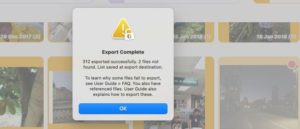
This could be due to several reasons:
- Photos in iCloud: In Mojave and older, photos must be downloaded from iCloud before exporting. For newer libraries, Photos Takeout does it for you.
- Non-System library: In Catalina or later, if the missed items are all iCloud-based or edited photos, the Source library wasn’t your System Library. Fix this, then retry.
- Inability to access files: e.g. missing referenced files, hidden photos and other odd cases. A text file of items not exported is saved, so that you can investigate.
- No file permission: Mostly with referenced files. See where these are located and that you haven’t moved, renamed or deleted them. Contact us with details.
2) I have hundreds of albums. It takes a lot of scrolling to select those I want to export. What to do?
Switch to List View (using the little icons within the Years and Albums buttons); it allows easier, more granular selection.
3) Can Photos Takeout export Shared Albums?
Yes. Click the Albums tab, and scroll to the bottom. You'll find all your Shared Albums listed there. Just select and export.
4) How does Photos Takeout handle export of raw images?
Raw photos can exist in Photos as raw-only or raw-jpeg pairs. For both cases, Photos Takeout exports according to the following rule:
Unmodified check-marked: Only the unedited original RAW file are exported.
Unmodified unchecked: Only the latest edited JPG version are exported.
5) How does Photos Takeout export Live Photos?
Since Live Photos are only supported within the Apple ecosystem, Photos Takeout exports them as a combination of JPG (or HEIC) and MOV file.
I AM CONFUSED
1) I added Titles to all photos, but exported photos only show the Titles, not the original file names. Why?
Apple Photos stores original as well as edited file names, but Photos Takeout only keeps the edited names. Also, if multiple photos have the same name, they are sequentially numbered e.g. Vacation 1.jpg, Vacation 2.jpg etc.
2) I have a System Library that syncs with iCloud. I have another huge library on external drive. If I set it as system library, won’t it start uploading to iCloud?
Use the following workflow to prevent this:
- Temporarily disconnect the Mac from iCloud. See how.
- Connect EHD to Mac. In Photos Preferences, make the EHD library the system library.
- Launch Photos Takeout and export whatever you want
- Reverse Step 2 (Disconnect EHD; revert to normal Photos and iCloud settings).
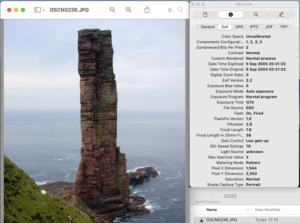
3) Exporting photos changes Date Created to “Today” in Mac Preview (Get Info).
The Creation Date shown by Preview > right-click > Get Info isn’t the EXIF date but the file system date i.e. when it was saved to its current location. To check the EXIF date, open the photo with Preview > click Tools > Show Inspector > EXIF.
4) My iCloud storage is full. I want to export my Photos library with Photos Takeout, then delete large items from iCloud. But Apple Photos can't be sorted by file size. What to do?
Use the Mac app PhotoSort to sort your Mac and iCloud Photos library by file size and aesthetic quality. It helps you quickly find large files (often videos) and small but numerous unwanted items like screenshots, memes, internet downloads, and blurry shots. Available on the Mac App Store.
MORE QUESTIONS?
Please email us through the app, explaining the issue and providing these details:
- your Mac and OS version,
- how many items in your library,
- size of the library (GB),
- library location (on Mac or EHD),
- location of photos (locally in Mac Photos, iCloud or referenced);
- export destination (Mac, EHD, NAS, cloud storage etc.)
The more information you provide, the faster we’ll be able to analyze and troubleshoot your specific issue.
