
APFS or EXFAT? The Right SSD / HDD Format for Your Apple Photos Library
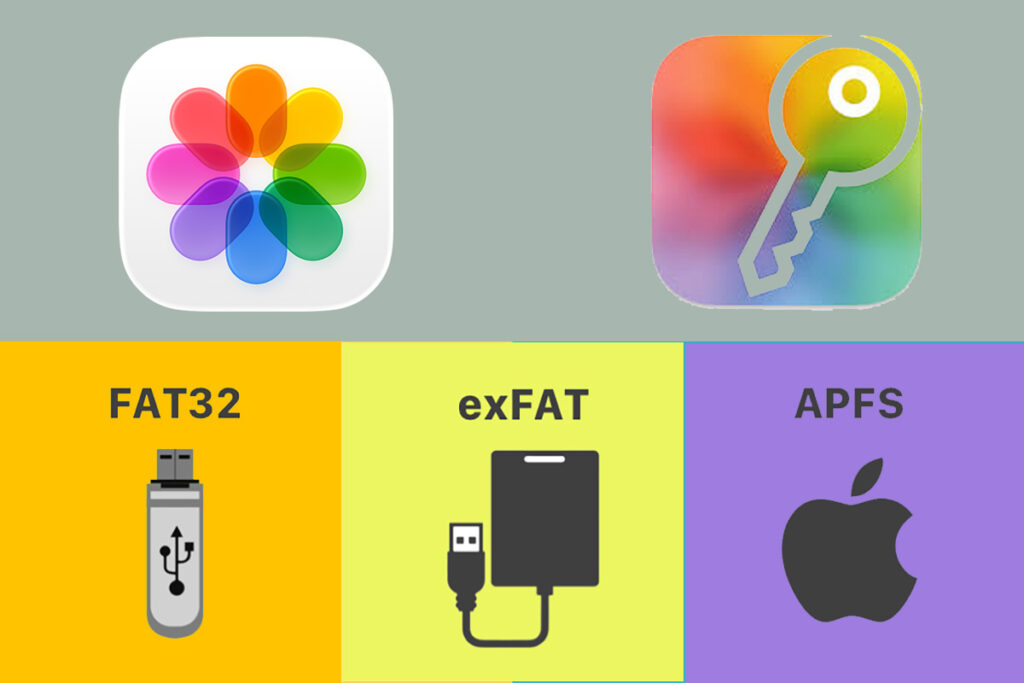
When exporting photos and videos from the Apple Photos library, try to use an external drive formatted as APFS or Mac OS Extended (Journaled). As far as possible, avoid using FAT32 or ExFAT format.
It’s not that you can’t use FAT formats, but you must know the inherent limitations of these file systems. It’s also not easy to check in advance that your Photos Library won’t run afoul of these. FAT-based file systems work for simple file transfers, but can cause problems when dealing with large Photos Libraries.
Understand the Limitations
- File Size Limits: FAT16 and FAT32 have strict maximum file sizes: 2 GB per file for FAT16 and 4GB per file for FAT32. Video files are often larger. Apple Photos offers no way to check how many and which of your files exceed these sizes. ExFAT removes this limit, but still has other issues.
- Filename and Character Restrictions: FAT-based systems disallow the use of special characters like: / : * ? ” < > \ | in file names. If a photo or album name contains any of these characters, the export will fail. FAT16 is even more restrictive, using an old 8-character filename limit.
- No Journaling (Higher Risk of Corruption): FAT32 and ExFAT don’t support journaling. So a cable disconnect, incorrect disk eject, system sleep, or power loss during export can corrupt files or even the entire drive. APFS/HFS+ provide much stronger protection.
- Weak macOS Metadata Support: FAT-based file systems do not support macOS permissions, extended attributes, or resource forks. This can lead to missing metadata and incorrect timestamps.
- Reliability With Large Numbers of Files: Photos libraries typically have thousands of items. FAT and ExFAT slow down significantly with large directories. This increases the chance of write failures, corruption, and very long export times. APFS can handle many files quickly and safely.
In short, while FAT/FAT32/ExFAT offer broad compatibility, they are not ideal for large Photos library exports. Using APFS vs. ExFAT ensures faster, safer, and more reliable exports—and helps avoid the most common problems users encounter when saving their Photos Library to an external drive.
If You Have to Use a FAT-format Drive
In some situations, you can’t use APFS and have to use a ExFAT-format external drive. Example: when migrating to a Windows-based system or moving to Apple-independent storage. For such cases:
- If you can’t use APFS, use ExFAT – NOT FAT16 or FAT32,
- Rename any file and album names containing illegal characters,
- Check for large file sizes, and know that some metadata may be lost,
- Consider splitting very large libraries into 2 or 3 libraries,
- Be prepared for slower exports.
To check if any filenames in your Photos library contain illegal characters, create a smart album with the conditions ( Filename – Includes – / ) + ( Filename – Includes – : ) + …. Unfortunately, you can’t check album names this way; you’ll have to do that manually. To check your Photos library for file size, you can use the excellent macOS utility app PhotoSort.
What About Storing a Photos Library?
If you have a very large Photos library, you may want to move it from your Mac’s internal drive to an external hard disk drive (HDD) or SSD as explained here, but you must not store it on:
- NAS or a shared network drive: Apple expressly warns against this, as it can irreparably corrupt your Photos library.
- A FAT-based system, because of all the limitations listed above.
How to Export Apple Photos Library
The native Export functionality provided by Apple Photos is very limiting. A much easier and faster way to export an iCloud or Mac Photos library into regular folders is with the macOS app Photos Takeout. It is a fast, easy, and parametrized way to export even very large libraries into folders by Years or Albums, and to keep those backups incrementally updated over time.
